Can Apps See Your Photos Without Permission
The system photo picker, a built-in tool on both iOS and Android, is why the honest answer to this question is “sometimes, yes, and it’s not what you’d assume.” When an app uses this picker, you tap “Choose Photo,” select the images yourself, and the app receives exactly those photos. No permission prompt ever appears. No permanent access gets granted. Technically, the app never touched your photo library at all, it just received what you handed it directly. That’s the source of most of the confusion around this topic.
Three Scenarios, Not One
Most explanations treat “photo access” as a single yes-or-no question. It’s actually three distinct situations, and they behave completely differently.
| Scenario | Permission Required | What the App Can See |
|---|---|---|
| System photo picker | No | Only the specific photos you select in that moment |
| Limited or selected access | Yes, granted once | Only the photos you’ve hand-picked to share |
| Full access | Yes, granted once | Every photo in your entire library |
The photo picker sits outside the permission system entirely. Limited access and full access both require you to grant something, but they grant wildly different amounts of exposure.
The Photo Picker Loophole Explained
This is the single most misunderstood mechanic in the whole topic. On iOS, this system tool is called UIImagePickerController; on Android, it’s simply the Photo Picker. Either way, the operating system itself handles displaying your gallery and letting you tap to select. The app requesting the photo never gets handed the keys to your library. It gets handed the specific pictures you chose, nothing more. People frequently interpret this as “the app accessed my photos without asking,” when the more accurate description is that the app never needed to ask, because you selected what it received, one photo at a time, through a system-controlled interface it doesn’t have visibility into beyond your selection.
What Full Access Actually Grants
Full access is the permission most apps quietly push you toward, even when they don’t need it. Once granted, the app can view, copy, and use every photo currently in your library, along with anything added later. Security researchers generally recommend avoiding this setting entirely unless an app has a specific, ongoing reason to browse your full gallery, something like a backup or gallery-organizing tool. Most apps requesting photo access don’t fall into that category.
Limited Access: The Middle Ground Most People Skip Past
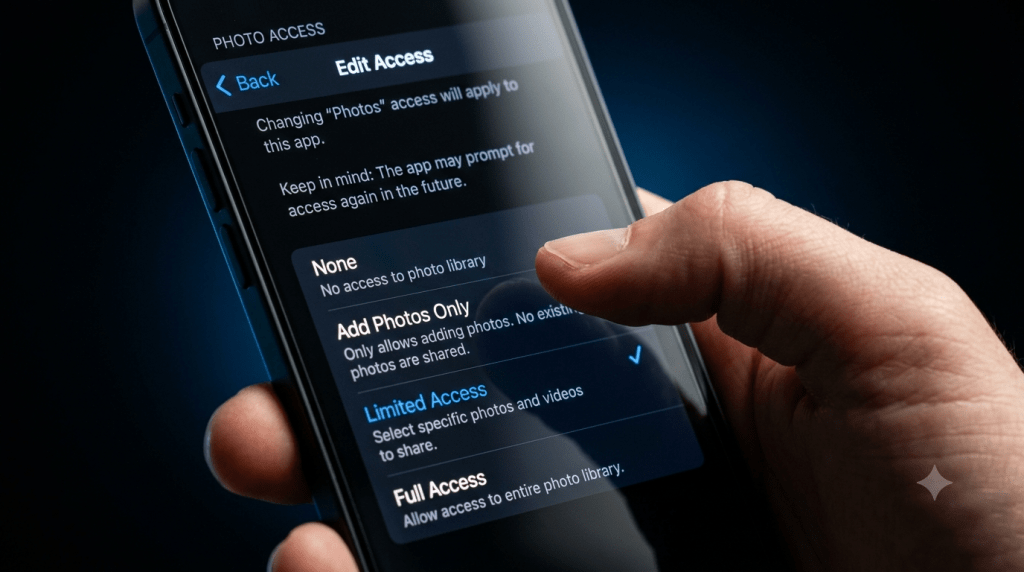
Both iOS and Android now offer a middle option: you hand-pick specific photos an app can see, without exposing the rest of your library. This option exists specifically to replace full access for the vast majority of use cases, uploading a profile picture, attaching an image to a message, editing one photo. The catch is presentation. Permission prompts are frequently built around a prominent “Allow” button and a buried “Select Photos” link, a layout that nudges people toward granting more than they meant to. Choosing the limited option deliberately, rather than tapping whatever button is largest, closes most of this gap on its own.
The ‘Add Photos Only’ Option
A separate, less obvious setting lets an app save new photos to your library without ever being able to read what’s already there. This is the correct setting for an app that generates images, an AI photo editor, a screenshot tool, but has no legitimate reason to browse your existing gallery. It’s write-only access: the app can put something in, but it can’t look at what’s already inside.
What Your Photos Reveal Beyond the Image Itself
This is the part almost no explanation covers with any depth. Every photo carries EXIF metadata: GPS coordinates showing exactly where it was taken, a precise timestamp, the camera or phone model, and sometimes depth data or captions. An app with any form of photo access, limited or full, can typically read this metadata alongside the image itself. A seemingly innocent collage app with full access could theoretically reconstruct a detailed map of everywhere you’ve been, simply by reading the location data embedded in your camera roll, without needing to analyze a single image visually. This is a substantially larger privacy exposure than most people account for when granting access for a single stated purpose.
When Permission Doesn’t Matter: Vulnerabilities
Beyond the permission system entirely, security vulnerabilities have occasionally allowed unauthorized photo access without triggering any prompt at all. In 2024, a vulnerability tracked as CVE-2024-44131 bypassed Apple’s TCC framework, the system responsible for managing app permissions, allowing unauthorized access to files, photos, and camera data without alerting the user. Separately, malicious apps have been found actively scanning photo galleries specifically searching for cryptocurrency wallet recovery phrases, information people sometimes photograph rather than write down. These aren’t hypothetical edge cases; they’re documented incidents, which is why relying solely on “I never granted that permission” as a security assumption has real limits.
iOS and Android Handle This Differently
On iOS, photo access runs through a layered system involving entitlements, purpose strings (the explanation text an app must show when requesting access), and runtime authorization prompts. Android’s approach shifted significantly with scoped storage, introduced in Android 10, which restricts apps from freely browsing storage the way older versions allowed. Android 14 went further, adding a permission specifically for selected-photo access, letting users grant visibility into a chosen subset of images without exposing the full media library. Someone on an older Android version and someone on Android 14 are working with meaningfully different privacy protections by default, even using the exact same app.
Third-Party SDKs Add Another Layer
An app you granted photo permission to isn’t necessarily the only thing with access to that data. Many apps embed third-party SDKs, pre-built code libraries for analytics, advertising, or A/B testing, the same mechanism covered in how do apps know your age, gender, and interests. These SDKs can sometimes access and transmit data the host app itself has permission for, without the person using the app having any visibility into which embedded library actually touched what. You granted the permission to one app; you often can’t see everywhere that permission’s reach actually extends.
How to Check and Change Photo Permissions
On iOS, go to Settings, then Privacy and Security, then Photos, where every app with any level of access is listed individually. On Android, go to Settings, then Apps, select the specific app, then Permissions. In both cases, switching a permission to Limited or Selected Photos, rather than leaving it at full access, is the single most effective adjustment for apps that don’t have an ongoing reason to browse your entire library.
Red Flags Worth Watching For
A flashlight app, a calculator, or a simple offline game requesting photo access has no functional reason to need it. That mismatch between an app’s stated purpose and its permission request is one of the clearest signals worth pausing on before tapping Allow. The useful question to ask before granting anything: does this specific feature actually require seeing my whole library, or would selecting individual photos accomplish the same thing? For most apps, the answer points toward limited access rather than full.
FAQ
Can apps see your photos without permission?
Yes, in one specific and non-obvious way: through the system photo picker, which shows an app only the photos you actively select, without ever requesting or granting formal permission. See the sections above for how this differs from limited and full access, and what each one actually exposes.
I never gave this app photo permission. How did it see my photos?
You likely used the system photo picker to select and share specific images directly. The app received only those photos, not ongoing access to your library.
Does “Add Photos Only” mean an app can read my existing photos?
No. That setting only allows an app to save new photos into your library. It cannot browse or read anything already stored there.