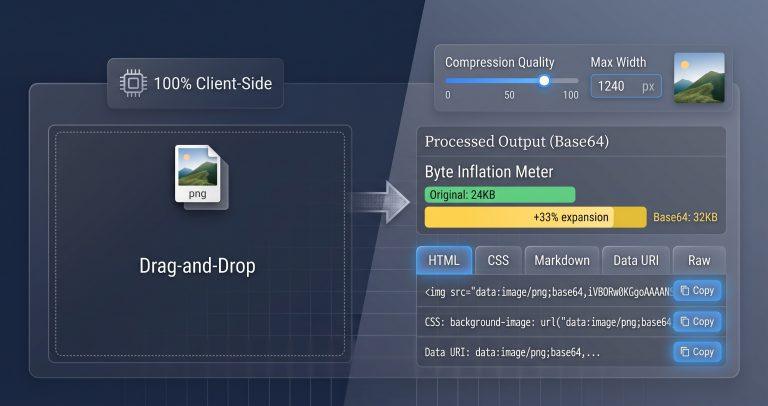
Converting an image to Base64 increases its file size by roughly 33%. Most developers don’t realize this penalty until their HTML pages become bloated and slow to load. This tool encodes images to Base64 entirely in your browser, with optional pre‑encoding compression and resizing to minimize the payload impact.
Why This Tool Exists
Most online Base64 converters require uploading your image to a server. That’s a privacy risk. Others, like base64-image.de, impose file size caps and lack client‑side compression. Base64.guru reloads the page on every setting change. None of them show you the exact byte inflation penalty or warn you about email client clipping limits.
This tool solves these problems by running 100% client‑side. Your image never leaves your machine. You can resize it, compress it, and preview the encoded output before copying. The byte inflation meter shows exactly how much larger your Base64 string is compared to the original binary file.
How This Tool Works
The converter uses the browser’s native FileReader API to read your image file as a Data URI. An offscreen Canvas element handles optional resizing and compression before final encoding.
- File Reading – Drag and drop or select an image file. The FileReader reads it as a Data URI (
readAsDataURL) without sending any data to a server. - Canvas Resizing – If you adjust the max width or height, the tool renders the image to an offscreen Canvas and scales it proportionally. This reduces the pixel count and the final Base64 length.
- Quality Compression – For JPEG and WebP formats, a quality slider (0–100) controls compression level. Lower quality = smaller Base64 string.
- Output Formatting – The encoded string is presented in multiple formats: raw Base64, Data URI, HTML
<img>tag, CSSbackground-image, Markdown, and JSON. - Byte Inflation Meter – A live comparison shows the original file size in bytes versus the Base64 output character count, with the percentage expansion clearly displayed.
Real‑World Use Cases
- Email HTML Templates: Email clients have strict rendering limits. Gmail clips messages over 102KB. The HTML email safety warning alerts you if your Base64 payload exceeds ~25KB, helping you avoid broken images in Outlook and Gmail.
- Reducing CSS Bundle Size: When embedding small icons or logos directly into CSS, use the compression slider to shave bytes off your stylesheet. The byte inflation meter shows you the trade‑off between quality and payload size.
- Single‑File HTML Pages: For standalone documentation or offline tools, embedding images as Base64 eliminates external file dependencies. The tool’s multi‑format export lets you copy the exact syntax for HTML, CSS, or Markdown.
A developer at a marketing agency used this tool to embed 20 product icons into an email campaign template. The compression slider reduced the combined Base64 payload from 240KB to 175KB, keeping the email under Gmail’s 102KB clipping threshold.
Common Pitfalls & How to Avoid Them
- Problem: A Base64 image loads locally but breaks in Microsoft Outlook desktop. Solution: Outlook has a ~25KB rendering cap for Base64 images in HTML emails. The tool’s email safety warning flags any string exceeding this threshold. Compress or resize your image until it passes.
- Problem: Your Base64 string is too long for a URL query parameter. Solution: The tool warns you if the encoded string exceeds typical browser URL limits (~2,000 characters). Use a Data URI directly in HTML or CSS instead of passing it through a URL.
- Problem: Canvas
toDataURLloops cause memory leaks. Solution: The tool processes one file at a time and releases Canvas objects after encoding. For large batches, it provides individual copy buttons rather than re‑encoding everything simultaneously.
Troubleshooting & Error Handling
- Large File Warning: Dropping a file over 15MB triggers a warning. The tool prevents browser freezes by deferring processing and showing a progress indicator. For very large files, consider using a server‑side solution.
- SVG Files: SVG images are text‑based and can be encoded without rasterization. The tool preserves SVG as raw text unless you enable resizing, which forces rasterization. Use the raw Base64 output for SVGs to avoid quality loss.
- Invalid MIME Types: If you upload a non‑image file, the tool shows an error. Only image formats (PNG, JPEG, WebP, SVG, GIF, BMP, ICO) are supported.
Critical Warning: Base64 encoding increases payload size by ~33%. Always compress and resize images before encoding. The byte inflation meter is your guide – if the expansion is too high, adjust the quality or dimensions.
FAQ
Why does converting an image file to Base64 increase its file size by roughly 33%?
Base64 maps every 3 bytes of binary data to 4 ASCII characters, each representing 6 bits. This 3‑to‑4 ratio results in a 133% expansion. The tool’s byte inflation meter shows this exact penalty for every image you process.
How do I embed a Base64‑encoded image directly into an HTML email template?
Copy the HTML <img> tag output from the tool. Paste it directly into your email HTML. Watch the email safety warning – if the string exceeds ~25KB, Outlook may clip it. Compress or resize the image first.
What is the difference between a raw Base64 string and a Data URI scheme?
A Data URI includes the data: prefix and MIME type (e.g., data:image/png;base64,). A raw Base64 string is just the encoded characters without this prefix. Use the Data URI for <img src=""> and CSS; use raw Base64 for API payloads or JSON.
Do major browsers and CDNs cache inline Base64‑encoded images in HTML files?
No. Inline Base64 images are part of the HTML or CSS document. They are not cached separately as external resources. For frequently reused images, use external files to leverage browser caching.
How can I resize or compress an image before encoding it to Base64 to reduce CSS/HTML payload?
Use the tool’s built‑in Canvas controls. Set a max width or height to scale the image down. For JPEG and WebP, adjust the quality slider. Lower quality = smaller Base64 string. The byte inflation meter updates in real time to show your savings.
What is the maximum file size I can encode with this tool?
The tool processes files entirely in your browser. For large files (>15MB), you’ll see a warning. The practical limit depends on your device’s memory. For most images under 5MB, performance is smooth.
How do I copy the encoded output for different use cases?
Use the multi‑format tabs. Click “Data URI” for HTML src, “CSS” for background-image, “Markdown” for ![alt](), “Raw” for plain Base64, and “JSON” for API payloads. Each format has a one‑click copy button.